Using the Notification Center
One bell for everything waiting on you — orders to accept, bookings to confirm, waitlist parties and holiday requests — and how often it refreshes.
During service, the things that need a decision are scattered across different screens — an order waiting to be accepted, a booking still to be confirmed, someone on the waitlist, a holiday request from a member of staff. The Notification Center gathers all of them behind a single bell in the top bar, with a count, so you can see whether anything needs you without touring the dashboard.
What the bell picks up
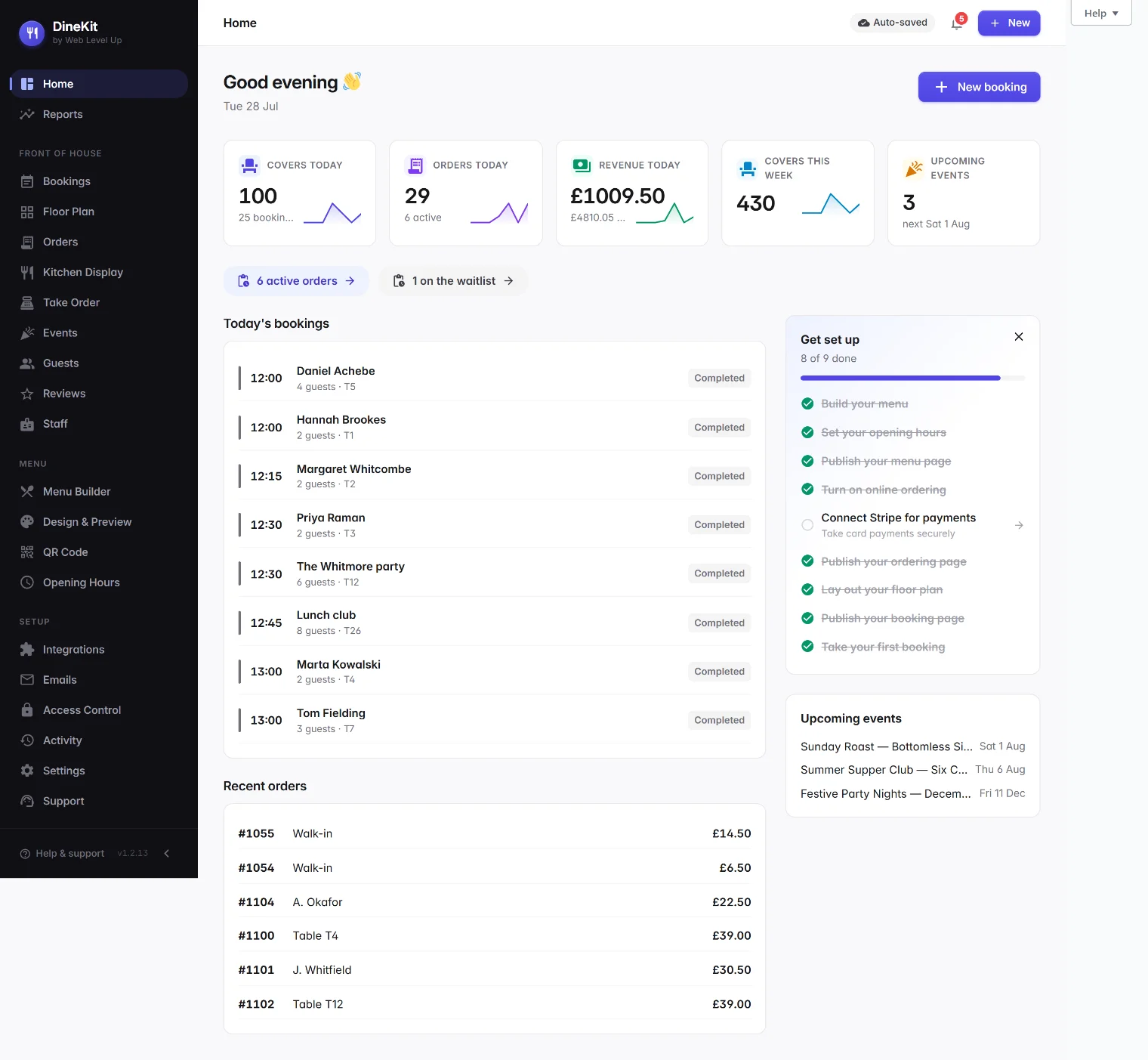
The Notification Center watches four things, and each one links straight to the screen where you resolve it:
- Orders to accept — new incoming orders that haven’t been accepted yet. Clicking through takes you to Orders.
- Bookings to confirm — upcoming reservations still sitting as unconfirmed. Clicking through takes you to the booking diary.
- Waitlist parties — guests waiting for a table, so nobody is forgotten at the door on a busy night.
- Holiday requests — pending leave from your team, waiting on a yes or no.
The count on the bell is the total across all four. If it shows nothing, there is genuinely nothing waiting.
Before you start
- DineKit installed and active — see Getting started.
- The bell only reports on features you actually use. If you have not switched on ordering, you will never see order notifications, and that is correct rather than a fault.
Step by step: using it during service
- Find the bell. It sits in the top bar of the DineKit dashboard, to the left of the New button, on every screen. You do not need to be on a particular page to see it.
- Check the badge. A number on the bell means that many items need attention. Hovering tells you the total in words.
- Open the list. Click the bell. Each entry describes what it is and how many — for example, orders waiting to be accepted, or bookings still to confirm.
- Click the item. Each one is a link to the screen that resolves it, already on the right view. You are not left hunting for where the thing lives.
- Deal with it, and the count drops. Accept the order or confirm the booking, and the item clears itself on the next refresh. There is nothing to dismiss or tick off manually.
How often it updates
The count refreshes in the background roughly once a minute while the dashboard is open. That is deliberate: it keeps the badge honest through a service without hammering your server every few seconds.
Two things follow from that which are worth knowing:
- There may be up to a minute’s delay between an order arriving and the badge changing. If you need to react faster than that, watch the Orders screen or the Kitchen Display directly — both update on their own.
- These are not phone push notifications. The bell lives inside the DineKit dashboard, so it only alerts you while somebody has DineKit open. It will not buzz a phone that is in a pocket with the app closed.
Notifications respect who is looking
The list is filtered by what each member of staff is allowed to see. Someone without permission for bookings will not be shown bookings to confirm, and will not be handed a link into a screen they cannot open.
This means a server and a manager can be looking at the same dashboard on different devices and quite correctly see different counts. If a member of staff says the bell is empty when you can see items waiting, check their role first — see Staff and rota.
Where the data goes
Nowhere. The Notification Center reads your own site’s orders, bookings, waitlist and leave records, on your own server. It makes no external calls and sends nothing to us to produce that count.
Tips
- Keep one dashboard open on the pass or the host stand. The bell only works if a screen somewhere is showing it.
- Use it as an end-of-shift check. A quick glance before you lock up catches the booking nobody confirmed and the holiday request nobody answered.
- A permanently high count means a process problem, not a software one. If there are always twelve bookings to confirm, either confirm them or turn on automatic confirmation in your booking settings.
Related guides
- Set up online ordering — where order notifications come from.
- Take table bookings — confirmations and the waitlist.
- Staff and rota — holiday requests and permissions.
- Back to the knowledge centre