How to manage staff and rotas
Add your staff, build the weekly rota with live labour costs, handle holiday requests and check you are staffed with the ops dashboard.
The Staff module is where you add your team, build the weekly rota, and keep on top of holiday — and it feeds DineKit’s ops dashboard, which tells you at a glance whether you’re properly staffed for any date based on your own bookings, seats and shifts. It’s all built in, with no separate scheduling app to buy or log into.
Before you start
- DineKit installed and active on your WordPress site.
- Your opening hours and tables/seats set up, since the ops dashboard uses these to work out capacity — see Getting started.
- If you take bookings, set those up first so the dashboard has covers to compare against staffing: see Take table bookings.
Step by step: add your people
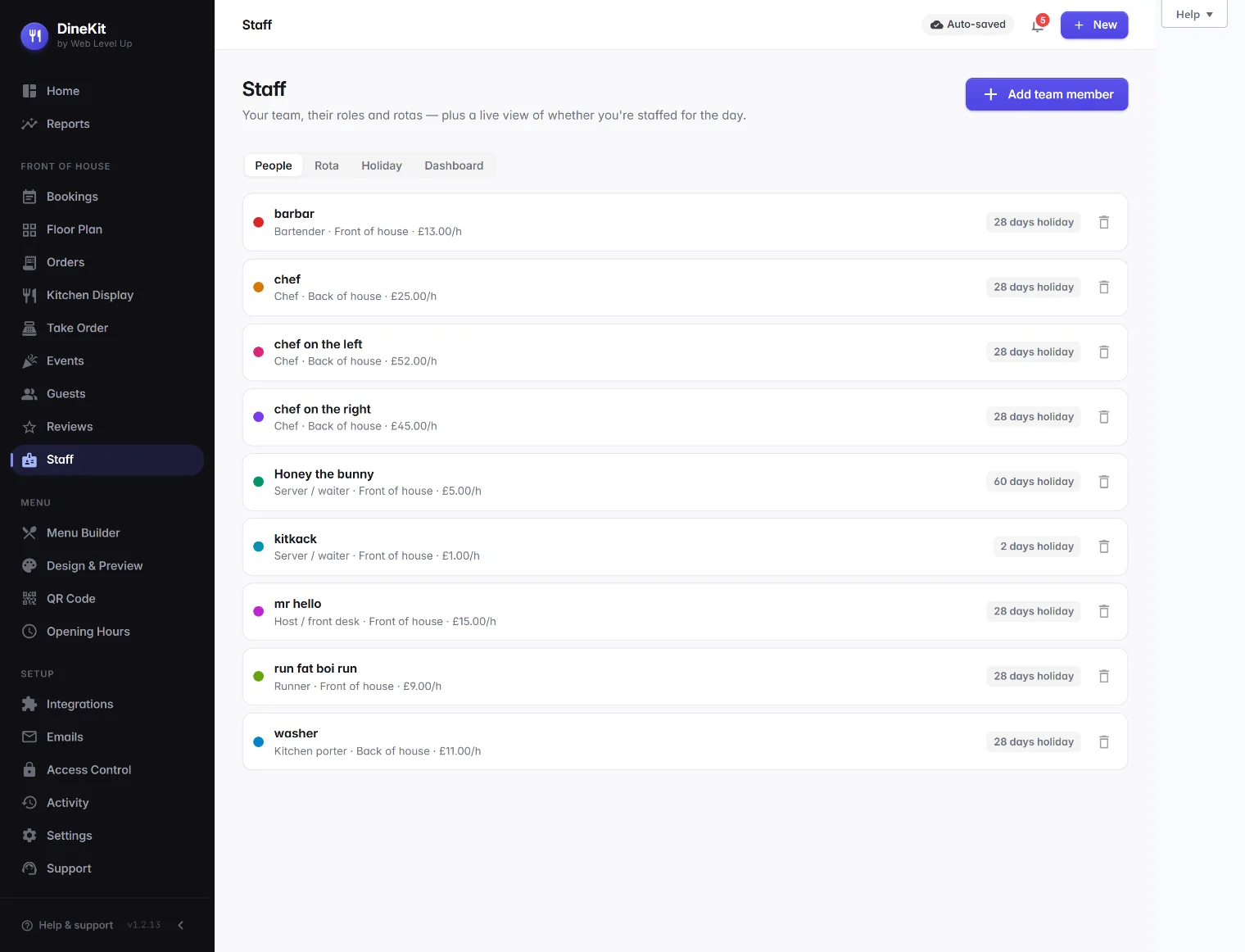
- In DineKit, open Staff and click to add a new staff member.
- Enter their name and pick a role/position from DineKit’s built-in catalogue (e.g. server, chef, kitchen porter, bartender, manager) — each role is already mapped to whether it’s normally a front-of-house or kitchen position, so the rest of DineKit knows where to count them.
- Confirm or adjust whether they work front-of-house or kitchen — this is what the ops dashboard uses to check you have enough people-facing cover for the covers you’ve got booked.
- Set their pay rate (hourly), which DineKit uses to work out labour cost on the rota and dashboard.
- Set their holiday allowance in days.
- Pick a rota colour for them — this is the colour their shifts show as on the weekly grid, so you can spot who’s on at a glance.
- Leave the active toggle on. Turning it off hides someone from new shift picks (for staff who’ve left or are on a long break) without deleting their record or history.
- Save, and repeat for the rest of your team.
Build the weekly rota
- Open Rota to see the weekly grid, with days across the top and your staff down the side.
- Drop a shift onto the grid for a staff member on the day they’re working, and set the start and end time.
- Shifts that run past midnight (e.g. an evening shift finishing at 1am) are handled correctly — DineKit works out the hours properly rather than treating it as a negative or zero-length shift.
- Each shift chip shows a per-shift £ labour cost preview, worked out from that person’s pay rate and the shift length, so you can see the cost as you build the rota rather than after the fact.
- The grid also totals a per-day £ labour cost, so you can see at a glance which days are cheap and which are expensive to staff before you commit to the week.
- Colour-coded chips (using each person’s rota colour) make it easy to scan who’s covering front-of-house and who’s in the kitchen on any given day.
Holiday requests
- Staff can put in a holiday request for a date range.
- You approve or deny each request from the Staff area.
- Approved holiday counts as an inclusive day span and is deducted automatically, so each person’s remaining balance tracks itself — you don’t need to work it out by hand.
- If any of your team are on irregular hours (casual/zero-hours, no fixed weekly pattern), DineKit shows guidance on the 12.07% accrual method — the standard UK approach to working out holiday entitlement for irregular hours as a percentage of hours worked, rather than a fixed number of days. This is guidance to help you apply the rule correctly; the actual holiday pay calculation is handled at payroll (see below).
The ops dashboard — are we staffed?
This is DineKit’s edge over a plain spreadsheet rota: a live picture, for any date, of whether you’re actually staffed for the business you’ve got coming in — worked out automatically from your own bookings, seats, table turn time and rota, not from a guess.
- Covers booked — how many covers you have booked in for that date, pulled straight from your bookings.
- Capacity used — covers booked against the capacity your seats and turn time can actually handle for the service window.
- Front-of-house on shift vs needed — how many FOH staff are actually rota’d on, compared with how many the covers booked would need.
- Labour cost today — the day’s rota’d labour cost in £, so you can see it alongside the covers and capacity numbers rather than in a separate spreadsheet.
You can tune the dashboard to how your venue actually runs: set your own covers-per-server figure (how many covers one FOH staff member can comfortably handle) and a target labour % (what proportion of sales you want labour cost to sit under), and DineKit uses those to flag whether a day looks under-staffed, over-staffed, or about right.
Payroll
DineKit deliberately does not run UK PAYE payroll — that means no RTI submissions to HMRC, no pensions auto-enrolment handling, and no keeping up with yearly rate changes inside DineKit. Those are regulatory jobs best left to dedicated payroll software or your accountant/bookkeeper.
Instead, DineKit exports a timesheet and holiday CSV — rota’d hours and approved holiday (including the rolled-up 12.07% figure for irregular-hours staff) — that you hand straight to your existing payroll provider. You get the scheduling, labour-cost visibility and holiday tracking without DineKit trying to be a payroll bureau.
Tips
- Keep pay rates up to date on each staff record — every labour-cost figure on the rota and the ops dashboard is only as accurate as the rate you’ve set.
- Use the active toggle rather than deleting a staff record when someone leaves, so their shift and holiday history stays intact for your CSV export.
- Give each person a distinct rota colour — it’s the fastest way to read a busy week at a glance.
- Check the ops dashboard a few days ahead of a known busy date (not just on the day) so you’ve still got time to add a shift if it flags you as under-staffed.
- If you run irregular-hours staff, use the 12.07% guidance when approving their holiday requests so the days you record line up with what your payroll provider expects to see on the CSV.