How to use the DineKit POS
Run dine-in and counter service from a phone or tablet: order pad, split bills, cash and card, tips and X/Z cash-up — free.
The DineKit POS is a touch-friendly till built into your DineKit admin. Use it to run dine-in service at the table, and to take fast counter or phone orders, all from a phone or tablet, with no extra app to install.
Before you start
- Build your menu (items, prices, modifiers and allergens) so there’s something to sell on the order pad.
- Add your staff so people can log in, and set up PINs for quick on-the-floor actions. See Staff and rota.
- If you want to take card payments, connect Stripe first. See Take card payments.
- For card-present payments in person, order a Stripe smart reader (a BBPOS WisePOS E or a Stripe Reader S700). If you’d rather not buy a reader, you can take cards using pay-by-QR instead, where the guest pays on their own phone.
- If you take tables, make sure your floor plan and tables are set up in Bookings so the POS can show you an open-tables view.
Step by step
- Open DineKit on your phone or tablet and go to the POS area of the admin. It’s built mobile-first for touch, and you can install it to your home screen so it opens like an app.
- Log in with your staff account, or use your PIN for quick access to on-the-floor actions without a full login.
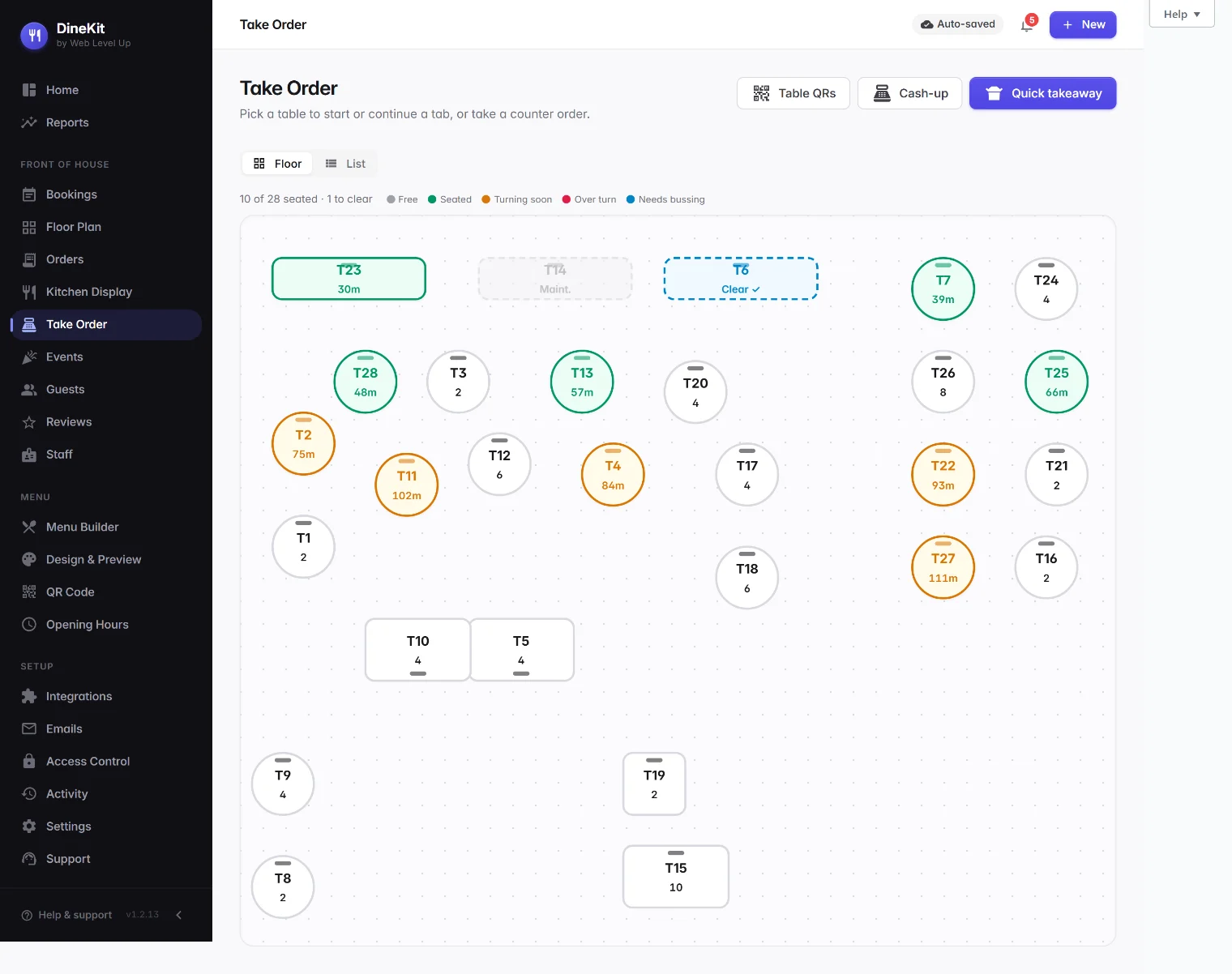
- From the Floor / open tables view, tap a free table to start a new tab, tap an already-open table to carry on serving it, or use Quick takeaway for a counter or phone order with no table.
- On the order pad, tap items from the menu grid to add them to the tab. Choose modifiers where prompted, and set the seat and course so the kitchen knows who ordered what and when it should go out.
- Tap Fire to send a round straight to the kitchen, or Hold to keep building the order before it’s sent. The tab stays open so you can keep adding rounds through the meal.
- When the table’s ready to pay, open the bill, split it if needed, add any discount or adjust the service charge, then take payment.
- Close the tab once it’s fully paid. It then drops off the open-tables view and appears on your order history.
The order pad and firing rounds
- The menu grid is organised by section, with a search box for busy services, and 86’d (sold-out) items greyed out so staff can’t accidentally order them.
- Tapping an item opens its modifiers and variants where relevant, then adds it to the current seat and course.
- Firing a round sends only the new lines to the kitchen (or bar, for drinks), so earlier rounds already fired aren’t reprinted.
- A tab can run for as long as the table needs, across as many rounds as you like, and several tables can be open at once.
Splitting the bill
When it’s time to settle up, the bill screen lets you split it in whichever way suits the table:
- Evenly across a number of guests.
- By item, so each guest pays for what they had.
- By amount, for an arbitrary split.
You can add a discount (a percentage or a fixed amount, with a reason) and there’s a service charge toggle for the discretionary UK 10–12.5% charge, which guests can ask to have removed. Tips can be added on top, on cash or on card.
Taking payment
The POS supports several tenders, and you can split a single bill across more than one of them:
- Cash — enter the amount tendered and the POS works out the change due.
- Card, in person — via a connected Stripe smart reader (BBPOS WisePOS E or Reader S700). The card is authorised first, so a tip can still be added before the payment is captured.
- Pay-by-QR — the guest scans a code and pays on their own phone, a card option that needs no reader at all.
- Voucher, comp / on-the-house, and house or account charges — local tenders for the situations that don’t go through Stripe.
- Split tenders — for example part cash, part card — with the balance tracked down to zero across as many payments as it takes.
Prices on the menu are VAT-inclusive, and every receipt shows a VAT breakdown.
Manager PIN
A manager PIN is needed to void a line, refund a payment (including a partial refund on part of a bill), or override a price. This keeps day-to-day service quick for staff while keeping the sensitive actions auditable and under a manager’s control.
Cash management
- Record an opening float at the start of a shift.
- Log any pay-in or pay-out from the till drawer during service.
- Use no-sale to open the drawer without a transaction — it’s logged, so there’s a record of why it opened.
Cashing up: X and Z reports
Run an X report mid-shift for a snapshot of sales and tenders so far without closing anything down. Run a Z report at the end of the day to close the till and get the full end-of-day figures, with any variance against the float and expected cash flagged. Any card payments still awaiting capture are resolved before a Z report can be run.
Loyalty points
The POS can award loyalty points on a sale, so regulars build up points on their in-person visits the same way they would ordering online.
QR order-at-table
Alongside the staff-run POS, guests can order themselves by scanning the QR code on their table. It’s the same commission-free ordering engine, so a QR order lands on the same tab and the same Orders board as anything a member of staff rings in, tagged as dine-in for that table.
Tips
- Taking card payments in person needs a Stripe smart reader (a BBPOS WisePOS E or a Reader S700) — DineKit is software, not a hardware supplier, so the reader is bought separately through Stripe.
- If you don’t want to buy a reader, pay-by-QR covers card payments with no hardware at all — handy for a quick start or as a backup if a reader isn’t to hand.
- Set up staff PINs before service starts so quick actions like firing a round or taking a payment don’t need a full login each time.
- Because dine-in, takeaway and QR orders all share one Orders board, there’s one place to see everything that’s happening, whichever way an order came in.