How to run events with pre-orders
Create set-menu events in DineKit and let each guest pre-order their courses via a share link, with a consolidated kitchen prep sheet.
Events in DineKit are for set-menu occasions — a Christmas party, a wedding breakfast, a work do — where every guest chooses their own dishes ahead of time instead of ordering on the day. You set the date and the menu once; each guest opens a private link, picks a dish for each course, flags any allergens or dietary needs, and the kitchen gets one consolidated prep sheet instead of a stack of separate notes.
Before you start
- Have a menu built with Menus, with its sections standing in for the courses (e.g. Starters, Mains, Desserts). See Getting started if you haven’t built a menu yet.
- Know the event date and roughly how many guests are coming, so you can check the room isn’t already full from bookings.
- No Stripe account or online ordering setup is needed just to run an event — pre-orders don’t take payment, they just collect each guest’s choices.
Step by step
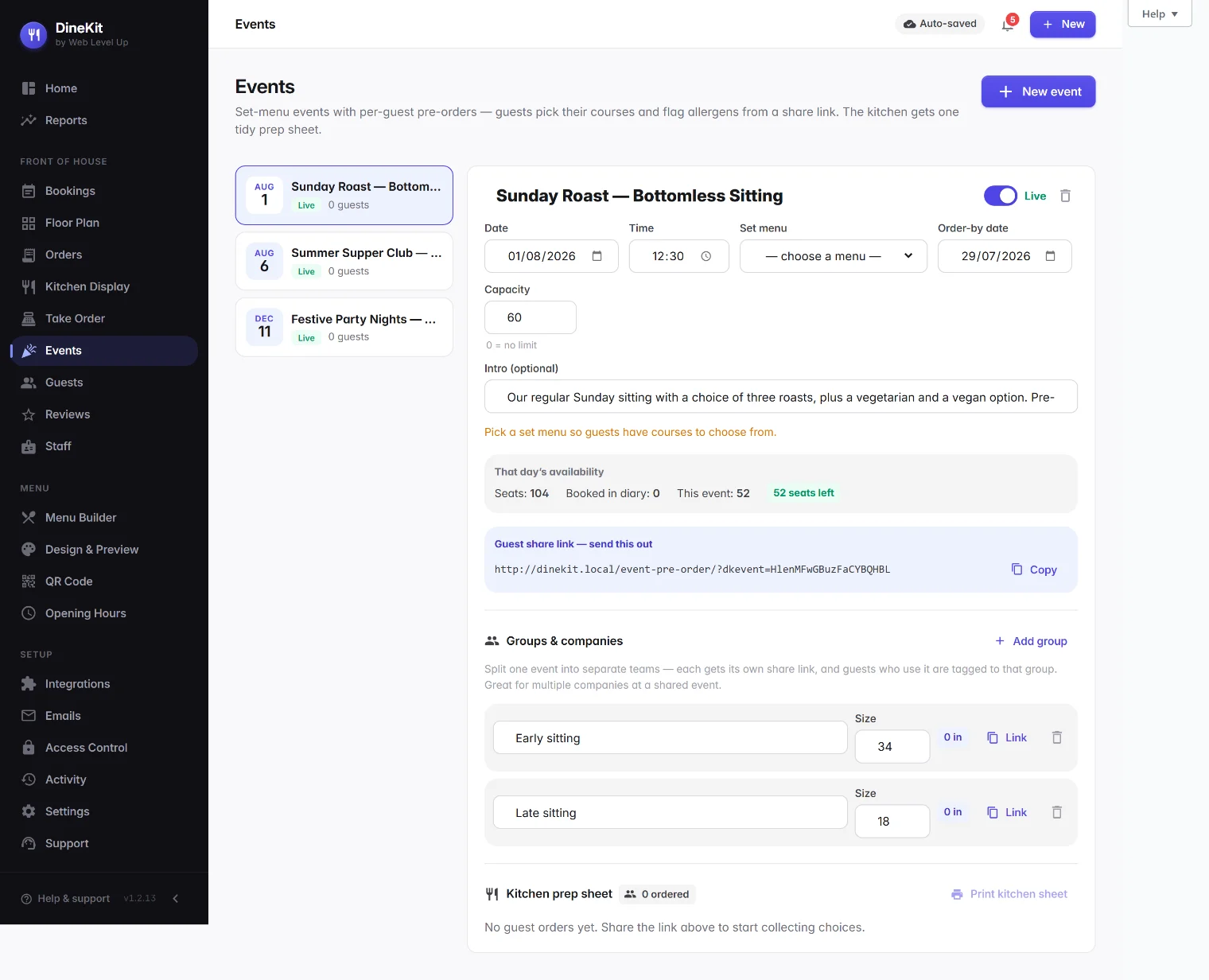
- In DineKit, open Events and create a new event.
- Give the event a name and a date.
- Link the event to the menu you want guests to choose from — its sections become the courses guests pick from (starter/main/dessert, or however you’ve set it up).
- Save the event. DineKit generates a public “magic link” for it — a unique link tied to that event, with no login required to use it.
- Send that link to the organiser (the bride, the office party planner, whoever booked the do). They can forward it on, or you can send it directly to each guest.
- As replies come in, check the event in the admin area to see who’s pre-ordered and who hasn’t yet.
- On the day, print the consolidated kitchen prep sheet from the event so the kitchen has one clear list to work from.
How guests use the link
- A guest opens the link on their phone or computer — no account, no login.
- They pick one dish for each course on the linked menu.
- They flag any allergens (all 14 UK-regulated allergens are covered) or other dietary needs against their own order.
- Once submitted, their choices are attached to that event ready for the kitchen sheet.
Running an event for several companies or teams
For a shared function room with more than one party in it — say three companies at the same Christmas do — split the event into groups. Each group gets its own name, its own share link, and its own guest count, so:
- You send each company its own link, and their guests only ever see their own group when they pre-order.
- Each team effectively self-manages its own pre-orders through its link, rather than everyone sharing one link and getting confused about who’s who.
- In the admin view, guests are grouped by company, so you can see numbers and choices per team as well as for the event as a whole.
The kitchen prep sheet
Once pre-orders are in, the event gives you a consolidated prep sheet built for the kitchen, not the office:
- Total counts per dish across every guest (and every group, if you’ve split the event) — how many of each starter, main and dessert to prep.
- An allergen-to-guest map, so the kitchen can see at a glance which guests need which allergens accounted for, rather than hunting through individual order forms.
- It’s designed to print cleanly so it can go straight on the pass or into the kitchen folder.
Events in the diary and timeline
An event with a date shows up alongside your normal covers in the Bookings diary — as an events strip in the list view, and as a band on the full-width timeline view — along with its expected covers, so you can see at a glance that the room is committed that day. See Take table bookings for more on the diary and timeline views generally.
Checking what’s left (“call-in” availability)
When you’re on the phone taking a call-in enquiry for the same date, the event editor shows you that day’s room at a glance: total seats, what’s already booked in the diary, what this event is holding, and how many seats are left. That’s what lets you say yes or no to an extra party there and then, instead of cross-checking the diary separately.
Tips
- Build the menu for the event before you create the event — you can’t pick courses from a menu that doesn’t exist yet.
- Keep the magic link private to the people invited; anyone with the link can submit a pre-order against that event.
- For multi-company functions, always split into groups from the start — it’s much easier than untangling one shared list of guests afterwards.
- Re-print the kitchen prep sheet close to the day, after the last stragglers have submitted, so the counts and allergen map are up to date.
- Guest allergen and dietary flags from pre-orders feed into the guest’s profile, so repeat customers’ needs are remembered next time. See Guest CRM.