Using the guest CRM
See your regulars, their visit history and the allergies they have told you, and add VIP tags and notes — built automatically from bookings and orders.
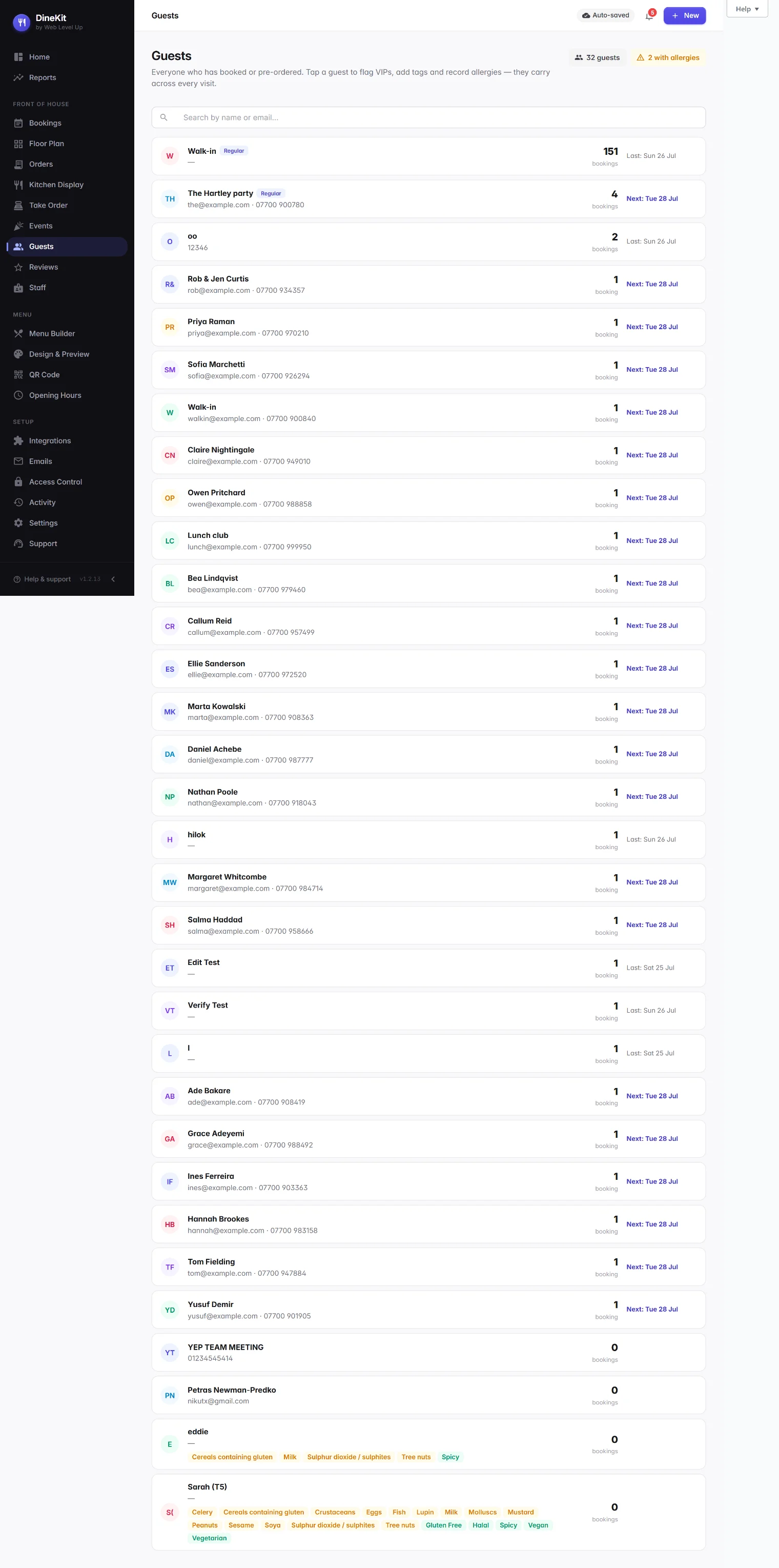
The Guest CRM is DineKit’s built-in way of getting to know your regulars — who keeps coming back, what they’re allergic to, and anything else your team should know before they walk in. You don’t fill out a database by hand: DineKit builds each guest’s profile for you from the bookings, orders and event pre-orders they already make.
Before you start
- You’ll get the most out of the Guest CRM once you’re taking table bookings and running events with pre-orders — those are the two places guest details are captured from.
- No setup or connection is needed to switch it on — profiles start building automatically as soon as a guest books, orders or pre-orders with a name and contact detail attached.
- If you haven’t used DineKit before, start with Getting started.
Step by step
- Take bookings, take online orders, and run events with guest pre-orders as normal — you don’t do anything extra to “add” someone to the CRM.
- Every time a guest’s name and contact details appear on a booking, an order, or an event pre-order, DineKit matches it to an existing guest or creates a new profile for them.
- Each profile keeps a running visit history, a repeat-visit count, and once someone has been in enough times, DineKit adds a Regular badge to their profile automatically.
- Open Guests in the DineKit admin to see the list of profiles that have built up, and click into any guest to open their drawer.
- In the drawer, top up what DineKit has gathered automatically with your own notes — mark someone as a VIP, add tags, and jot down allergy notes or free-text notes for your team.
Allergies that carry across visits
When a guest pre-orders for an event, they pick their dishes and flag any of the UK 14 allergens or dietary needs that apply to them — the same flow used to build your kitchen’s prep sheet for that event. DineKit remembers what a guest has told you and merges it into their guest profile, so an allergy they mentioned for one event still shows on their profile the next time they book or order, rather than being asked and answered from scratch every visit.
It’s worth being honest with your team about the limits here: this only captures what a guest has actually told DineKit through a pre-order. If someone mentions an allergy at the table but never confirms it through a pre-order, it won’t appear automatically — add it to their notes in the drawer yourself so it’s remembered next time.
Enriching a profile in the guest drawer
- VIP status — flag your best regulars so front-of-house knows to look out for them.
- Tags — free-form labels you define yourself, useful for grouping guests however suits your venue (e.g. “birthday regular”, “always window table”).
- Allergy notes — add or amend allergy information alongside whatever’s already come through from pre-orders.
- Notes — a free-text field for anything else worth remembering, from seating preferences to a note about a past complaint.
Everything in the drawer is stored against that one guest profile, so it’s there the next time anyone on your team opens it — no separate spreadsheet to keep in sync.
How it helps day to day
- When a guest books, open their profile to see their visit history at a glance before you confirm the table — handy for spotting a regular who deserves a bit of extra attention.
- Spotting VIPs is as simple as checking for the badge or tag you’ve set, so a returning VIP doesn’t get treated like a first-time walk-in.
- Spotting allergy risk before service starts — a guest’s known allergies are sitting on their profile, so the kitchen and floor aren’t relying on someone remembering to ask again.
The guest drawer is intentionally compact today — it’s built for a quick check before or during service rather than a full guest-analytics dashboard. A richer profile view (spend history, next/last visit at a glance) is on our roadmap.
Tips
- Encourage guests to use the pre-order link for events — every dish and allergen they flag there feeds straight into their CRM profile for next time.
- Use tags consistently across your team so they’re actually useful when someone else opens the drawer.
- Check a guest’s notes before you confirm a booking, not just on the day — it’s the easiest way to catch an allergy or preference in time to act on it.
- The Regular badge is earned automatically from repeat visits — you don’t need to set it yourself, but VIP status is yours to decide.
Feeding retention
The Guest CRM isn’t just a lookup tool — it’s also what makes your retention efforts personal rather than generic. Once you’re collecting reviews and running retention follow-ups, knowing who your Regulars and VIPs are helps you decide who to prioritise and how to talk to them. See the reviews & retention guide for how that side works.