How to get support
Raise a support ticket from inside your dashboard — no account or licence key needed — track threaded replies, and know exactly what gets sent.
If something isn’t working, you can raise it without leaving your dashboard. DineKit has support built in: a form inside the plugin, threaded replies you read in the same place, and no account, licence key or paid plan required to use it.
That last point matters. DineKit is free, and support is not gated behind a pro tier — you do not need to buy anything or sign up anywhere to get a reply.
Try the common fixes first
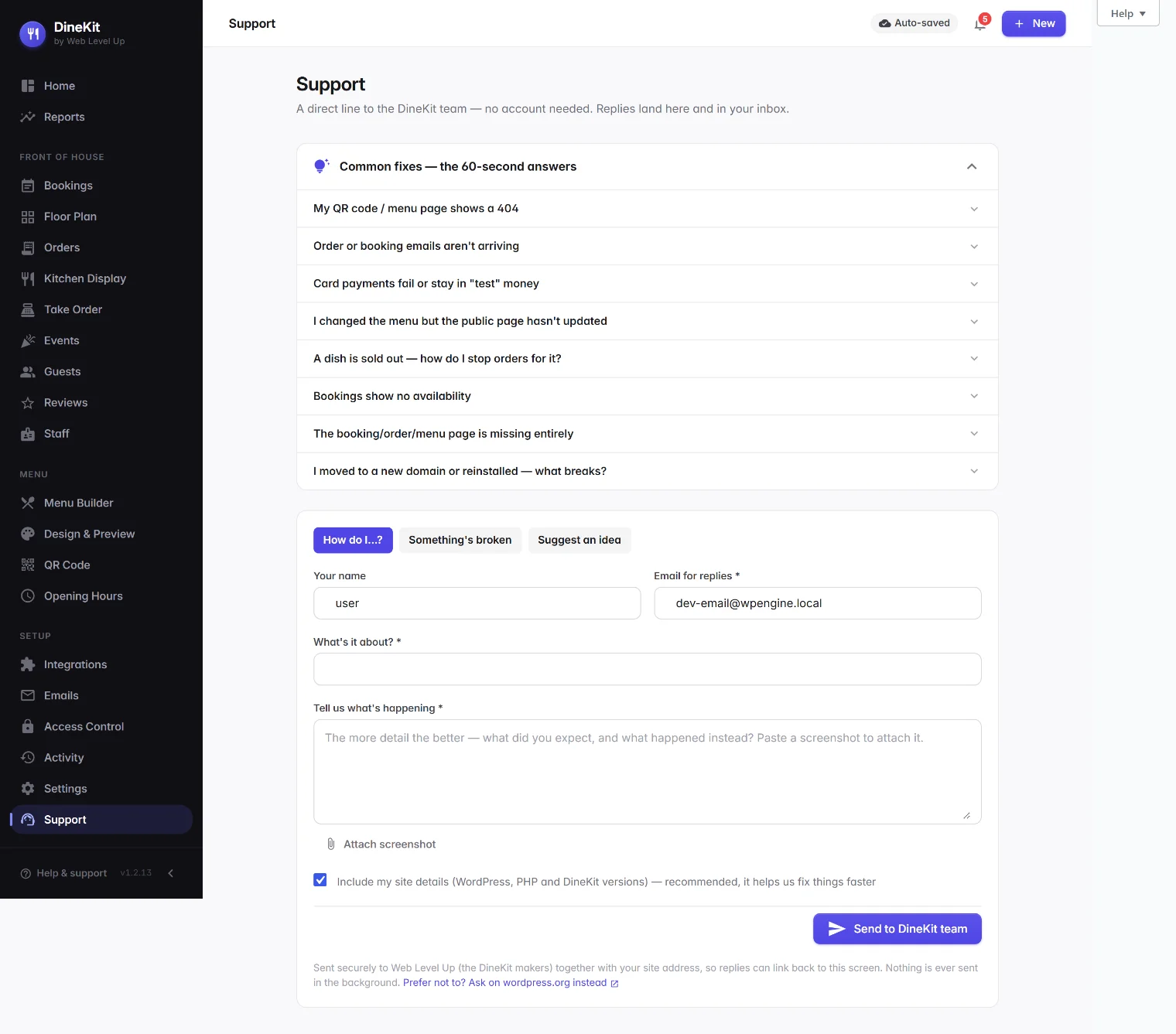
The Support screen opens with a short list of the problems people hit most often, each one expandable. It is worth thirty seconds before you write a message, because a good number of issues are a setting rather than a bug — a menu that isn’t showing because the page was never published, or ordering that appears closed because it is outside your opening hours.
If one of those matches what you are seeing, you have your answer immediately and there is nothing to send.
Before you start
- DineKit installed and active — see Getting started.
- An email address you actually read, since that is where replies are announced.
- Ideally, a screenshot of the problem. It saves a round trip more often than anything else you can send.
Step by step: raise a ticket
- Open Support. In DineKit, choose Support at the bottom of the sidebar, under Setup.
- Skim the common fixes at the top of the screen and expand anything that sounds like your problem.
- Fill in the form. You need your name, an email address for replies, and a short subject line describing what it’s about.
- Describe what happened. The most useful message says what you expected and what happened instead. “Bookings don’t work” is hard to act on; “I confirm a booking and the status goes back to pending when I reload” can be investigated straight away.
- Attach a screenshot. You can paste an image directly into the message box to attach it — no need to save the file first and go hunting for it.
- Send it. The message goes to the Web Level Up support hub, and the ticket appears in your own list on the Support screen.
Following the conversation
Your tickets are listed on the Support screen with their current status, so you can see at a glance what is open and what has been answered. Replies are threaded under the original message — you read and respond inside DineKit rather than digging through your inbox for the right email chain.
What gets sent, and when
DineKit does not phone home. It makes no background calls to us, and it does not report on your site, your menu, your orders or your guests.
The only time anything is sent to Web Level Up is when you click to send a support message — and then what goes is exactly what you typed: your name, your email, your subject, your message and any screenshot you attached. If you would rather not include something in a screenshot, crop it before you paste it, the same as you would with any support request.
The public forum, if you’d rather
DineKit is also on the WordPress.org plugin directory, which has its own support forum. It is always available as an alternative, and there is a link to it from the Support screen.
The trade-off is straightforward. The forum is public, so other people with the same problem can find the answer — which is genuinely useful — but you should not post anything private there. The in-dashboard form is the better route for anything involving your own site details.
Tips for a faster answer
- One problem per ticket. Three unrelated issues in one message will be slower than three short tickets.
- Say what you already tried. It stops the reply suggesting the thing you did an hour ago.
- Include the page or screen. “On the booking diary, Timeline view” narrows it down enormously.
- Mention anything unusual about your setup — a caching plugin, a page builder, a security plugin, an unusual host. These cause a fair share of reports.
- Note your DineKit version. It is shown at the bottom of the sidebar, next to Help & support.
Related guides
- Getting started — the setup checklist, which resolves a lot of first-week questions.
- Frequently asked questions
- Back to the knowledge centre