Creating QR Code Menus
Create print-ready QR code menus and A4/A6 table cards that link to your live DineKit menu — always current, no reprinting, no fees.
DineKit’s QR code menus give diners an instant, contactless way to view your food and drink options. Instead of printing laminated menus that go out of date the moment you change a price, you generate a single QR code that always points to your live menu page. This guide explains what these QR code menus are and how to create, download and display your own table cards.
What DineKit QR menus are and why they help
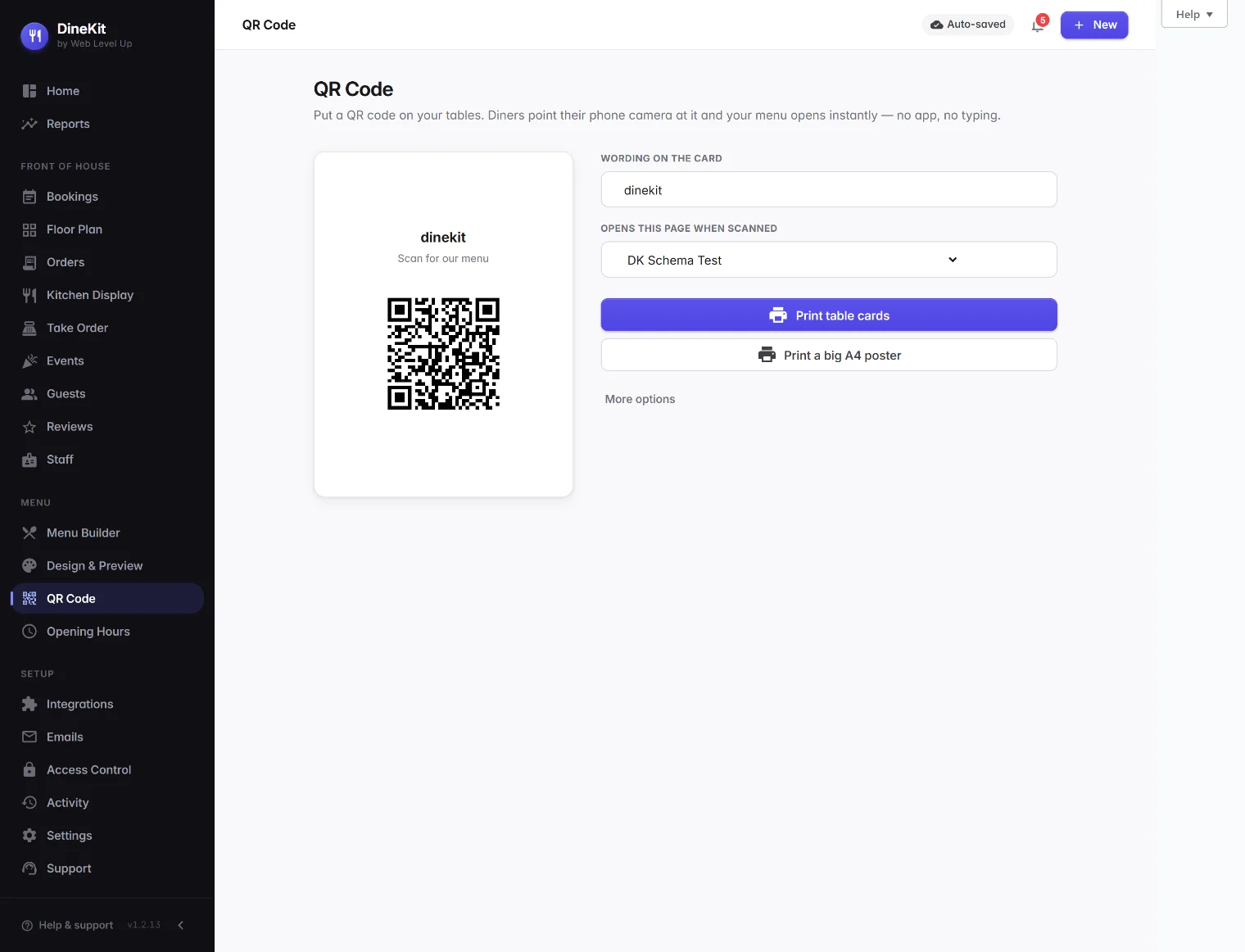
A DineKit QR code is a small square barcode that links directly to the menu page on your own website. When a customer points their phone camera at it, their browser opens your live menu. There is nothing to install and no app to download, so any guest with a modern smartphone can view your menu in seconds.
Because the code points to your live page rather than a fixed image, your menu is always current. Update a dish, change a price or mark something as sold out, and every printed card instantly reflects the change. DineKit generates the QR code on your own site — no third-party service, which means no scan limits, no expiry dates and no fees.
Before you start: publish your menu
A QR code is only useful if it has somewhere to point. Before generating one, make sure you have a menu published on a page. If you have not done this yet, follow our guide to publish your menu on a page and confirm it displays correctly on desktop and mobile.
Generating the QR code and downloading your table cards
DineKit produces a print-ready QR code plus downloadable PDF table cards in two sizes: A4 for larger displays and A6 for individual tables.
- In your WordPress dashboard, open the DineKit menu and go to the QR code or table cards section.
- Select the menu page you want the QR code to link to. DineKit uses your live page URL, so the code always stays in sync.
- Generate the QR code — DineKit creates it directly on your site, so no data is sent to an external service.
- Choose your card size: A4 for a full-page card or A6 for compact table cards.
- Download the print-ready PDF and send it straight to your printer.
- Print on card or paper, trim if needed, and place the cards where customers will see them.
Because the QR itself never changes, one print run can last indefinitely.
Where to place your QR cards
- On each table — an A6 card lets seated diners browse straight away.
- In the window — an A4 card lets passers-by preview your menu.
- At the counter or till — ideal for takeaways and quick-service venues.
- On packaging — add the code to bags or boxes so delivery and takeaway customers can reorder easily.
- On receipts — a printed code encourages repeat visits.
Why you never need to reprint
A traditional printed menu freezes your prices and dishes in place, so any change means designing, printing and distributing new copies. A DineKit QR code links to your live page instead, so the code stays the same forever while the menu behind it changes as often as you like. Print your table cards once and update your menu freely from then on.
A quick note on the public QR generator
If you would like to create a QR code without logging in, there is also a free public tool on our site: our free QR code generator produces a QR code for any menu URL in a few clicks. It is handy for quick tests, while the in-plugin generator remains the best route for print-ready A4 and A6 table cards tied to your live menu.